Table of contents
Acknowledgements
- BogoBogo is forked from Addressbook Level 3
- Libraries used: JavaFX, Jackson, JUnit5
- Theme used: just-the-docs
Setting up, getting started
Refer to the guide Setting up and getting started.
Design
 The `.puml` files used to create diagrams in this document can be found in the [diagrams](https://github.com/AY2122S1-CS2103-F10-2/tp/blob/master/docs/diagrams) folder. Refer to the [_PlantUML Tutorial_ at se-edu/guides](https://se-education.org/guides/tutorials/plantUml.html) to learn how to create and edit diagrams.
 Architecture
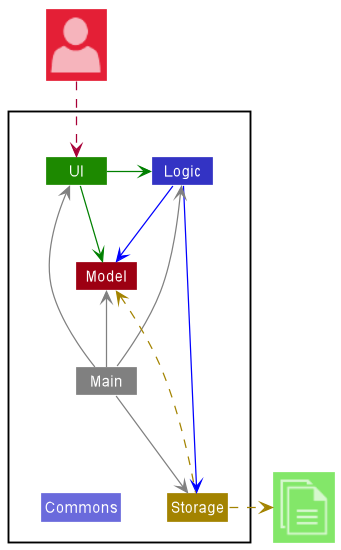
The Architecture Diagram given above explains the high-level design of the App.
Given below is a quick overview of main components and how they interact with each other.
Main components of the architecture
Main has two classes called Main and MainApp. It is responsible for,
- At app launch: Initializes the components in the correct sequence, and connects them up with each other.
- At shut down: Shuts down the components and invokes cleanup methods where necessary.
Commons represents a collection of classes used by multiple other components.
The rest of the App consists of four components.
-
UI: The UI of the App. -
Logic: The command executor. -
Model: Holds the data of the App in memory. -
Storage: Reads data from, and writes data to, the hard disk.
How the architecture components interact with each other
The Sequence Diagram below shows how the components interact with each other for the scenario where the user issues the command delete Milk c/5.
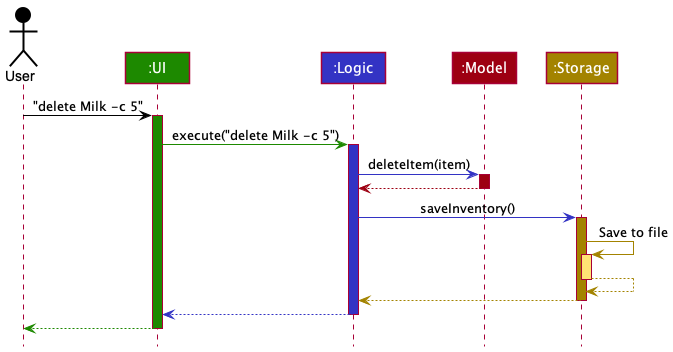
Each of the four main components (also shown in the diagram above),
- defines its API in an
interfacewith the same name as the Component. - implements its functionality using a concrete
{Component Name}Managerclass (which follows the corresponding APIinterfacementioned in the previous point.
For example, the Logic component defines its API in the Logic.java interface and implements its functionality using the LogicManager.java class which follows the Logic interface. Other components interact with a given component through its interface rather than the concrete class (reason: to prevent outside component’s being coupled to the implementation of a component), as illustrated in the (partial) class diagram below.
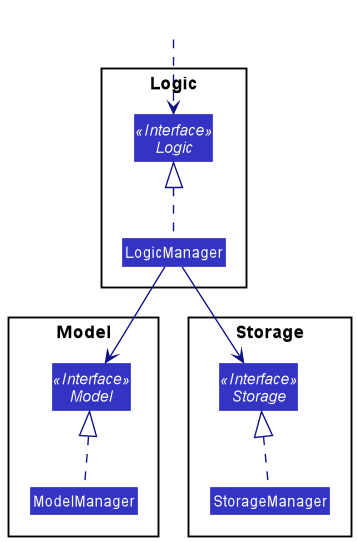
The sections below give more details of each component.
UI component
The API of this component is specified in Ui.java
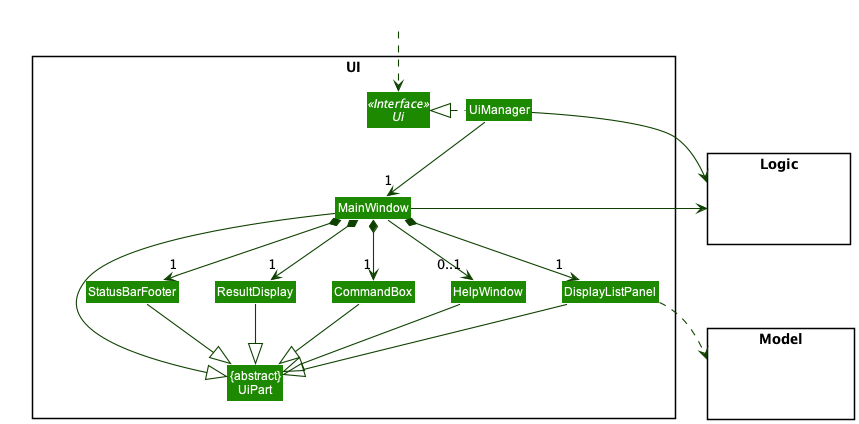
The UI consists of a MainWindow that is made up of parts e.g.CommandBox, ResultDisplay, PersonListPanel , StatusBarFooter etc. All these, including the MainWindow, inherit from the abstract UiPart class which captures the commonalities between classes that represent parts of the visible GUI.
The UI component uses the JavaFx UI framework. The layout of these UI parts are defined in matching .fxml files that are in the src/main/resources/view folder. For example, the layout of the MainWindow is specified in MainWindow.fxml
The UI component,
- executes user commands using the
Logiccomponent. - listens for changes to
Modeldata so that the UI can be updated with the modified data. - keeps a reference to the
Logiccomponent, because theUIrelies on theLogicto execute commands. - depends on some classes in the
Modelcomponent, as it displaysDisplayableobjects residing in theModel.
Logic component
The API of this component is specified in Logic.java
Here’s a (partial) class diagram of the Logic component:
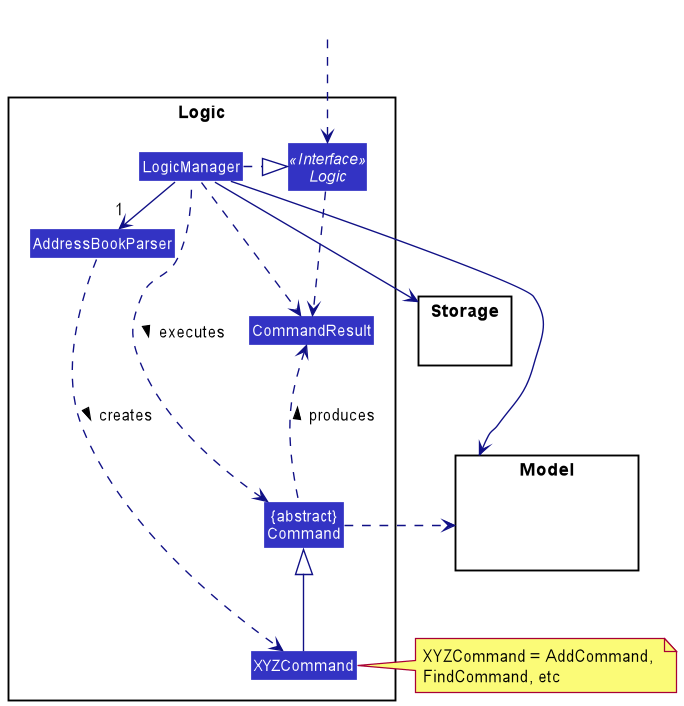
How the Logic component works:
- When
Logicis called upon to execute a command, it uses theAddressBookParserclass to parse the user command. - This results in a
Commandobject (more precisely, an object of one of its subclasses e.g.AddCommand) which is executed by theLogicManager. - The command can communicate with the
Modelwhen it is executed (e.g. to add an item). - The result of the command execution is encapsulated as a
CommandResultobject which is returned byLogicback to the caller.
The Sequence Diagram below illustrates the interactions within the Logic component for the execute("delete 1") API call.
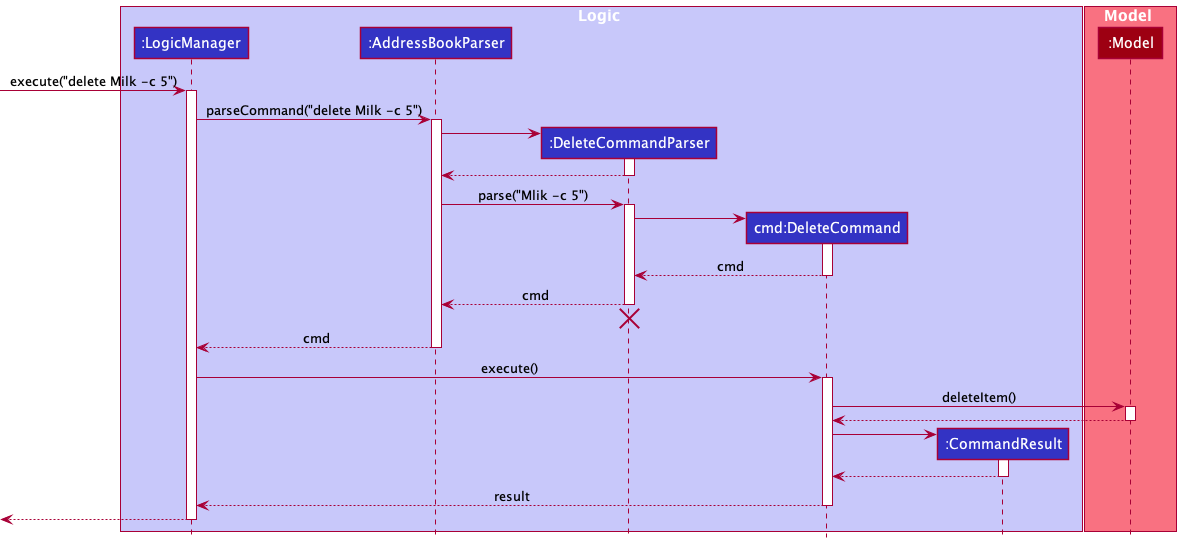
 The lifeline for `DeleteCommandParser` should end at the destroy marker (X) but due to a limitation of PlantUML, the lifeline reaches the end of diagram.
 Here are the other classes in Logic (omitted from the class diagram above) that are used for parsing a user command:
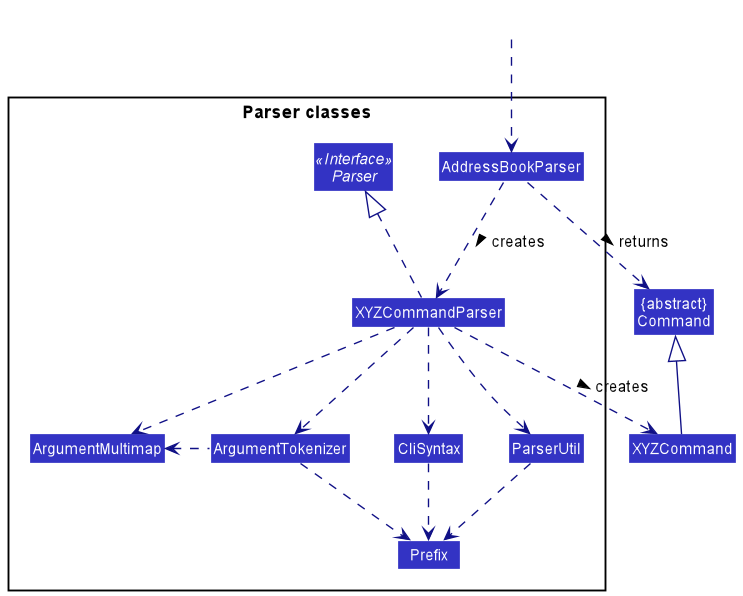
How the parsing works:
- When called upon to parse a user command, the
AddressBookParserclass creates anXYZCommandParser(XYZis a placeholder for the specific command name e.g.AddCommandParser) which uses the other classes shown above to parse the user command and create aXYZCommandobject (e.g.AddCommand) which theAddressBookParserreturns back as aCommandobject. - All
XYZCommandParserclasses (e.g.AddCommandParser,DeleteCommandParser, …) inherit from theParserinterface so that they can be treated similarly where possible e.g, during testing.
Model component
The API of this component is specified in Model.java
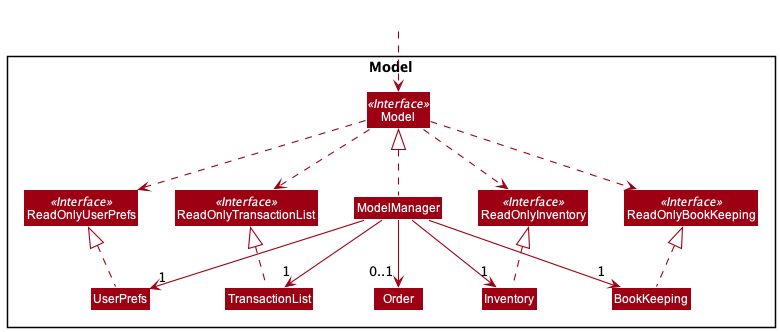
The Model component:
- stores an
Inventoryobject that encapsulates the inventory data. - stores an optional
Orderobject that encapsulates the data of current order. - stores a
TransactionListobject that encapsulates the history of past transactions. - stores a
UserPrefobject that encapsulates the user’s preferences. - does not depend on any of the other three components (as the Model represents data entities of the domain, they should make sense on their own without depending on other components).
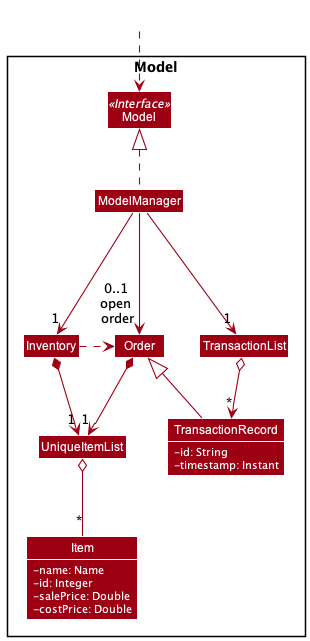
Lower level details of Model component:
-
InventoryandOrdereach has aUniqueItemListwhich contains a collection ofItem. - A
TransactionRecordrepresents a past order that has been transacted, with timestamp of occurrence. - The
TransactionListstores the history of allTransactionRecord.
Storage component
The API of this component is specified in Storage.java.
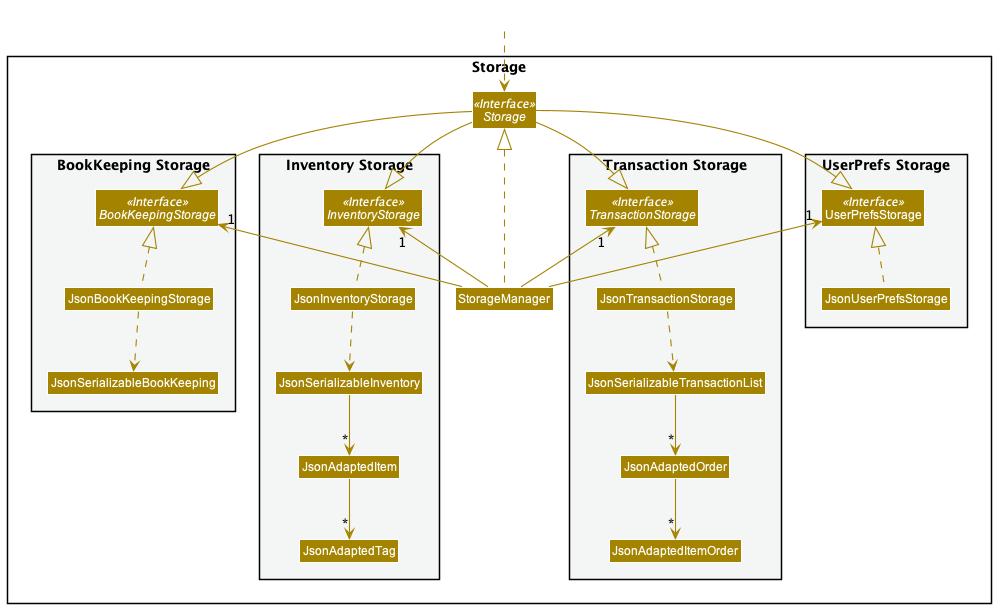
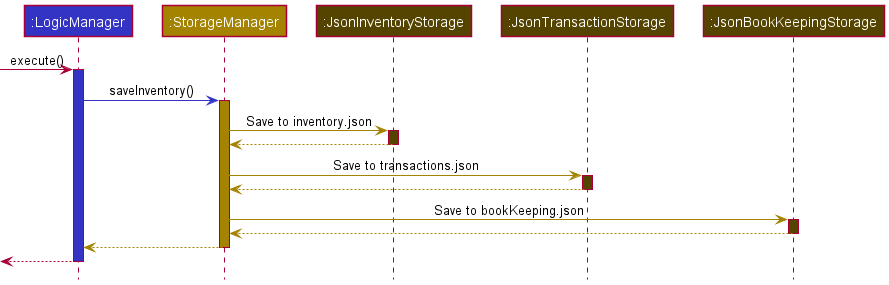
The Storage component’s responsibility is to read and write persistent data. It can save inventory data, user preference data, bookkeeping data, and transaction history in json format, and read them back into corresponding objects.
The storage of different aspects of BogoBogo’s data are each managed by their own class:
- Inventory Data:
JsonInventoryStorage - User Preferences:
JsonUserPrefStorage - BookKeeping Data:
JsonBookKeepingStorage - Transaction History:
JsonTransactionStorage
Each of these classes employ a facade interface that Storage inherits from. This ensures that Storage will have the necessary API for Logic to call when it wishes to save BogoBogo’s state.
Common classes
Classes used by multiple components are in the seedu.addressbook.commons package.
Implementation
This section describes some noteworthy details on how certain features are implemented.
Ordering
Placing an order occurs across multiple user commands (sorder, iorder, eorder). Here is an example of how each command changes the state of Model.
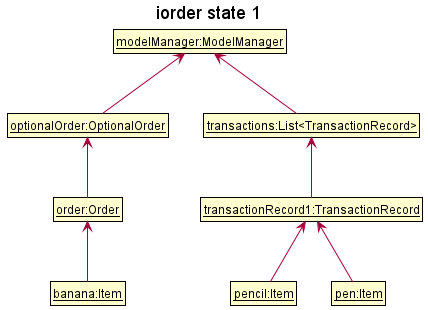
When ModelManager is initialised, optionalOrder is set to an empty Optional. At this point, the user has 1 order record with 2 items in his transaction list.
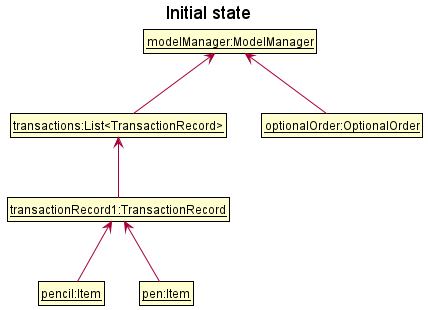
Step 1. The user enters ordering mode via the sorder command.
Upon entering the ordering mode, optionalOrder now has a new Order() which is empty.
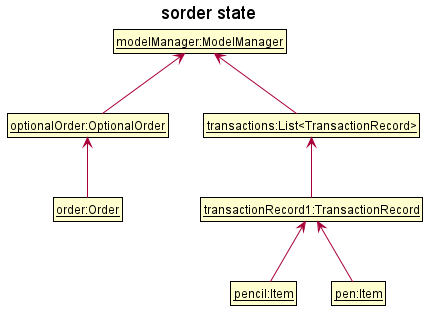
Step 2. The user adds an item to the order via the iorder command.
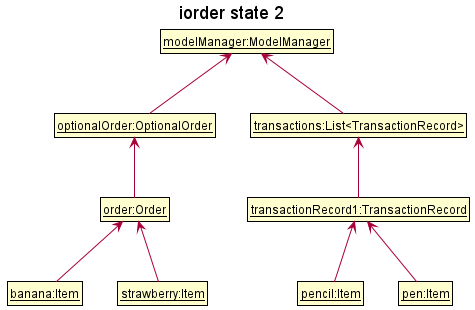
Upon entering iorder Banana c/1, the order now contains 1 banana item.
Next, upon entering iorder Strawberry c/1, the order now contains 1 strawberry item.
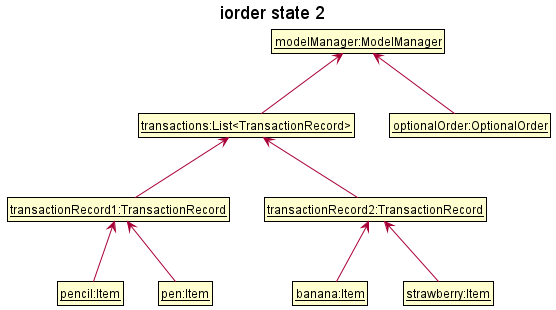
Step 3. The user transacts and ends the order via the eorder command.
After the transaction is done, optionalOrder is reinitialised to Optional.empty().
Step 4. The new transactions are saved to the json file.
Mutating Inventory
This section explains how various commands update the list of items in the inventory and display the result.
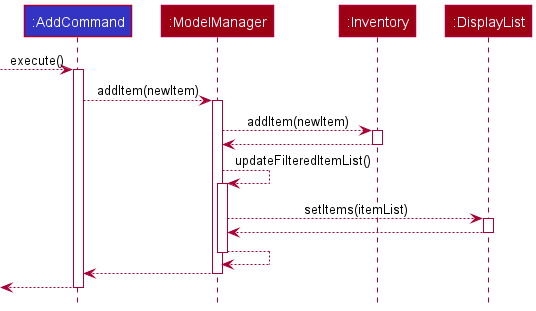
As described in the UML diagram of the Model component above, Inventory contains a UniqueItemList object which in turn has Item objects. Every time add, remove, edit, delete, or clear is called, the UniqueItemList inside Inventory is mutated, after which the UI will be changed upon the call of a method that mutates the DisplayList field inside ModelManager such as UpdateFilteredItemList(). More specifically, the ObservableList<Displayable> inside the DisplayList class is mutated.
The following sequence diagram shows what happens upon an addition of item to inventory until the ObservableList<Displayable> inside DisplayList changes.
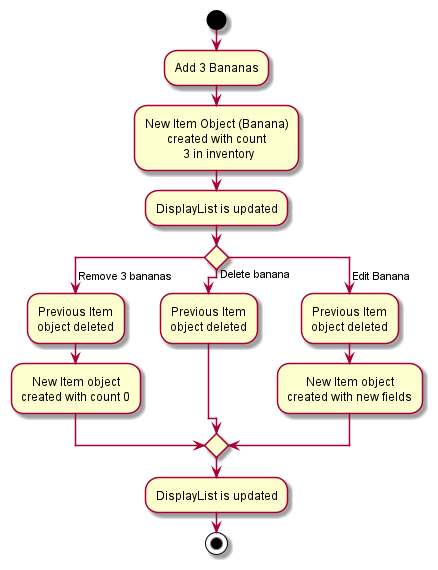
Another design decision that we have done is that Item objects are strictly immutable, as seen by all the final fields. Thus, when any field is mutated, the previous Item is destroyed and a new Item is created. The following activity diagram shows some possible actions that a user might take. Take note also on the difference between Remove and Delete command.
Controlling the Display Panel in UI
The main panel of displayed items in the UI is managed by DisplayListPanel in the UI component. This panel is dependent on changes made by command logic and should be able to be toggled to display different lists (e.g. inventory items, items in current order, list of transactions, etc.).
To minimise coupling between the logic and UI component, DisplayListPanel adopts an observer pattern.
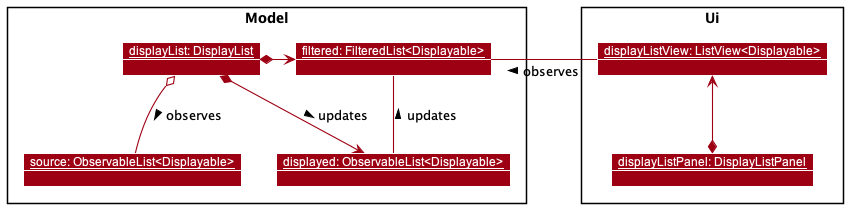
DisplayListPanel observes an ObservableList<Displayable> which is controlled by a DisplayList in the model component. This way, any changes to model can be propagated to the Ui without having to explicitly have knowledge about the Ui component.
DisplayList is composed of 3 lists.
-
DisplayList#filtered— A filtered list that is observed byDisplayListPanel. -
DisplayList#displayed— An observable list that acts as the base forDisplayList#filtered. Observes the currentDisplayList#source. -
DisplayList#source— An observable list that acts as the base forDisplayList#displayed.
To propagate any changes to the filtered list, to be reflected to the ui, we can:
1 . Filter the displayed list. DisplayList#setPredicate()
Set a predicate on the filtered list. This is done when items to be displayed already exists in DisplayList#source.
2 . Mutate the displayed list.
When the source is edited outside DisplayList, it will notify DisplayList#displayed, which will then copy and reflect all changes. This resultantly updates the DisplayList#filtered and the display panel.
3 . Update the source. DisplayList#setItems()
DisplayList removes the listener from the previous source and adds a new listener to the new source. DisplayList#displayed is updated to reflect the new source. This is done when we want to switch between lists to display. (e.g. displaying transactions instead of inventory)
DisplayList uses a 3 list approach because of the way JavaFX has implemented `FilteredList`. `FilteredList` is bound to a `ObservableList` which is bound to a regular `List`. Displaying an object
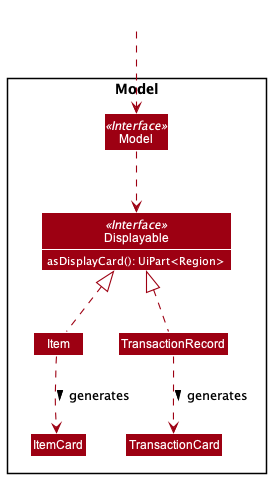
Any object can be displayed in the display panel by implementing the Displayable interface. The object must implement Displayable#asDisplayCard() which should return a UIPart<Region> that will act as the object’s list cell.
Design Considerations
Time complexity
Each update to source requires DisplayList to copy over an entire list (complexity: O(n)). This is definitely inefficient since updates usually involve appending or removing an item from source. (e.g. when the user adds an item to the inventory).
This inefficiency does not create observable latency given the envisioned scale of BogoBogo (1000 items). However, if BogoBogo is to be scaled up in the future, there might be a need for a more advanced implementation.
Proposed Upgrade: Instead of relying on JavaFX's `ObservableList`, we can create a customised observable list that can reference multiple sources. From there, we should be able to toggle which source we want to be displaying on the `filteredlist`. This way, copying is no longer required. [Proposed Feature] Autocompleting commands
BogoBogo is optimised for users that prefer the speed of CLI-based applications. The application will be more attractive to typists if there is an autocompleting feature. With the feature, the user doesn’t need to type entire command keywords or product names.
System: BogoBogo
Sugggested Use Case —  Autocompleting a command
Actor: User
MSS:
  1. User types half a command.
  2. User requests for BogoBogo to autocomplete the command.
  3. BogoBogo suggests to the user a complete command.
     Step 2 - 3 is repeated until User finds the intended command.
  4. User submits the autocompleted command.
  5. BogoBogo processes the command.

Extensions:
  2a. BogoBogo cannot guess the user's command.
    2a1. BogoBogo notifies the user it cannot autocomplete the command.
    2a2. User enters the entire command.
         Use case resumes from step 5.
The user can request for an autocomplete by hitting the tab character.
Lower level details
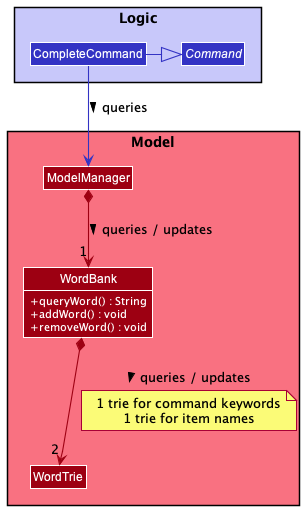
Autocompletion can be facilitated by a Wordbank class which contains:
- A trie for command keywords
- A trie for existing item names.
A CompleteCommand can then query Wordbank to complete either a command keyword or item name. Wordbank also has to be updated when the user adds or removes a unique item name.
Higher level details
BogoBogo will have 2 different ways to react to a command.
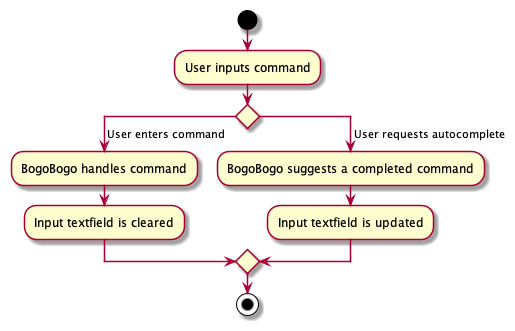
- The user hits the
enterkey: the command is processed normally. - The user hits the
tabkey: the command is autocompleted.
For the ui to distinguish the 2, we will need to implement a CommandSuggestion class that extends CommandResult. Should CommandBox detect a CommandSuggestion class when executing a command, it will adopt the suggestion stored in the result.
Here’s an example of how BogoBogo can react to the command text “add noo” followed by the user hitting the tab character. 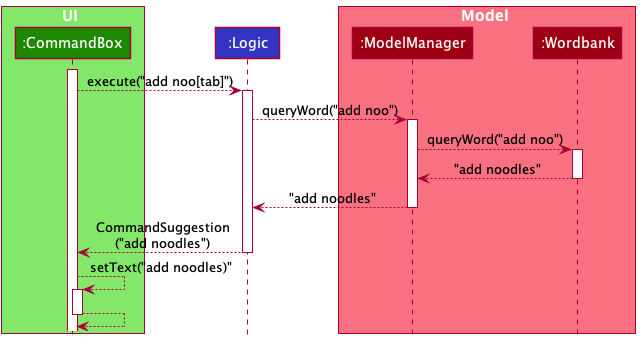
Design considerations
BogoBogo adopts an MVC pattern. By utilising a CommandSuggestion class to store the autocompleted command, the partition between view and controller is retained.
Alternatively, CommandBox can give Logic a callback to edit its text field. However, implementing auxiliary methods to support the callback pattern will likely require more effort.
Documentation, logging, testing, configuration, dev-ops
Appendix: Requirements
Product scope
Target user profile:
- small business owner / entrepreneur
- prefers desktop apps over other types
- can type fast
- prefers typing to mouse interactions
- is reasonably comfortable using CLI apps
Value proposition: manage a small business’ inventory and finances faster than a typical mouse/GUI driven app
User stories
Priorities: High (must have) - * * *, Medium (nice to have) - * *, Low (unlikely to have) - *
| Priority | As a … | I want to … | So that I can… |
|---|---|---|---|
* * * | small business owner | add items into the inventory list | account for newly stocked items |
* * * | small business owner | record item related information (name, price, cost, id) | record and track items’ details easily |
* * * | careless business owner | delete items from the inventory | remove wrongly added items and not incur any cost |
* * * | small business owner | remove items from the inventory | account for discarded or sold items |
* * * | small business owner | look at all my inventory items, and their information | review and track my inventory |
* * * | small business owner | record new orders and update the inventory accordingly | account for newly confirmed orders |
* * * | small business owner | search for item details quickly | respond to client or my own queries promptly |
* * | small business owner | list past transactions | review and verify transaction details |
* * | budget-savvy business owner | track the cost and profit that each item incurs | manage business costs and revenue closely |
* * | organised business owner | sort my inventory by name | keep my inventory easy to navigate |
* * | small business owner | identify items that are running low in inventory | track which items need to be restocked |
* * | first time user | seek help on how to utilise the application | |
* | prudent business owner | identify my bestsellers and flops | reprice my items and optimise profits |
* | risk-averse business owner | password protect my application | my data is kept private |
Use cases
For all use cases below, the System is the Bogo Bogo and the Actor is the user, unless specified otherwise.
Mutating the Inventory
UC01 - Adding Item(s)
MSS:
1. User requests to add a certain amount of an item into the inventory.
2. BogoBogo saves the item(s) into the  inventory.
   Use case ends.

Extensions:
1a. User is adding the item for the first time,
    and did not specify the id, cost price or sell price of the item.
    1a1. BogoBogo informs user of the missing details.
    1a2. User reenters the missing details.
    Use case resumes at step 2.

1b. User did not specify the count.
    1b1. BogoBogo assumes count to be 1.
    Use case resumes at step 2.

1c. The given id and name corresponds to 2 separate items in the inventory.
    1c1. BogoBogo notifies user of the ambiguity and shows the list of possible matches.
    1c2. User reenters the corrected details.

1d. The given name matches an item, but the given id is non-existent,
    or the given id matches the item but the given name is non existent.
    1d1. BogoBogo notifies user of the mismatch.
    1d2. User reenters the corrected details.
    Use case resumes at step 2.
UC02 - Deleting an Item
MSS:
1. User requests to delete an item from the inventory.
2. BogoBogo deletes the item from the inventory.
   Use case ends.

Extensions:
1a. User specified neither the name nor id of the item.
    1a1. BogoBogo notifies user of missing details.
    Use case ends.

1b. The specified item is not in the inventory.
    1b1. BogoBogo notifies user that the item is not found.
    Use case ends.

1c. The given id and name corresponds to 2 separate items in the inventory.
    1c1. BogoBogo notifies user of the ambiguity and shows the list of possible matches.
    1c2. User reenters the corrected details.
    Use case resumes at step 2.

1d. The given name matches an item, but the given id is non-existent,
    or the given id matches the item but the given name is non existent.
    1d1. BogoBogo notifies user of the mismatch.
    1d2. User reenters the corrected details.
    Use case resumes at step 2.
UC03 - Removing Item(s)
MSS:
1. User requests to remove a certain amount of an item from the inventory.
2. BogoBogo removes the specified amount of that item.
   Use case ends.

Extensions:
1a. User specified neither the name nor id of the item.
    1a1. BogoBogo notifies user of missing details.
    Use case ends.

1b. The specified item is not in the inventory.
    1b1. BogoBogo notifies user that the item is not found.
    Use case ends.

1c. The given id and name corresponds to 2 separate items in the inventory.
    1c1. BogoBogo notifies user of the ambiguity and shows the list of possible matches.
    1c2. User reenters the corrected details.
    Use case resumes at step 2.

1d. The given name matches an item, but the given id is non-existent,
    or the given id matches the item but the given name is non existent.
    1d1. BogoBogo notifies user of the mismatch.
    1d2. User reenters the corrected details.
    Use case resumes at step 2.

1e. User did not specify the count.
    1e1. BogoBogo assumes count to be 1.
    Use case resumes at step 2.

1f. The specified amount is greater than what the inventory has.
    1f1. BogoBogo notifies user of the actual amount of item in the inventory.
    Use case ends.
UC04 - Editing an Item
Precondition: BogoBogo is displaying the inventory.
MSS:
1. User requests to edit an item, specifying an item by index,
   with the fields and values to change.
2. BogoBogo updates the fields of the item at the specified index with the new values given.
   Use case ends.

Extensions:
1a. The specified index does not point to any item.
    1a1. BogoBogo notifies the user that the index is invalid.
    Use case ends.

1b. User specified a new ID/name that already belongs to a different item.
    1b1. BogoBogo notifies the user of clashing IDs/names.
    Use case ends.

1c.  User attempted to edit the count of an item
    1c1.  BogoBogo notifies the user that directly editing count is not supported.
    Use case ends.
UC05 - Clearing the Inventory
MSS:
1. User requests to clear the inventory.
2. BogoBogo acknowledges the request and clears the inventory.
   Use case ends.
Navigating the Inventory
UC06 - Finding an Item
MSS:
1. User searches for an item in the inventory
   by specifying possible id(s), name(s) or tag(s).
2. BogoBogo finds all items in the inventory that matches any of the descriptors.
   Use case ends.
UC07 - Sorting the Inventory
Precondition: BogoBogo is displaying the inventory.
MSS:
1. User requests to sort the inventory (either by name or count).
2. BogoBogo sorts the inventory accordingly.
   Use case ends.

Extensions:
1a. User specifies to sort by both name and count.
    1a1. BogoBogo notifies user that user can only sort by either name or count, not both.
    Use case ends.
UC08 - Listing the Inventory
MSS:
1. User requests to list out all items in the inventory
2. BogoBogo lists out all items in inventory.
   Use case ends.
Managing Orders
UC09 - Placing an Order
MSS:
1. User requests to start an order.
2. BogoBogo creates an order and requests for item names and quantities.
3. User adds an item into the order.
4. BogoBogo saves  the  item into the order.
   Step 3-4 is repeated until the user wishes to end the order.
5. User requests to end entering item and place the order.
6. BogoBogo transacts the order and updates inventory and transaction history.
   Use case ends.


Extensions:
1a. User is already in ordering mode
    1a1. BogoBogo informs the user that the current mode is already ordering mode.
    Use case resumes at step 3.

3a. User adds an item that is not in the inventory.
    3a1. BogoBogo notifies user that item is not found.
    Use case resumes at step 3.

3b. There is an insufficient supply of added items in the inventory.
    3b1. BogoBogo notifies user of the supply shortage.
    Use case resumes at step 3.

3c. User did not specify count.
    3c1. BogoBogo assumes count to be 1.
    Use case resumes at step 4.

3d. The given id and name corresponds to 2 separate items in the inventory.
    3d1. BogoBogo notifies user of the ambiguity and shows the list of possible matches.
    3d2. User reenters the corrected details.
    Use case resumes at step 4.

3e. The given name matches an item, but the given id is non-existent,
    or the given id matches the item but the given name is non existent.
    3e1. BogoBogo notifies user of the mismatch.
    3e2. User reenters the corrected details.
    Use case resumes at step 4.

4a. User incorrectly added an item into the order.
    4a1. User removes specified item from the order (UC10).
    Use case resumes at step 3.

5a. The order is empty.
    5a1. BogoBogo notifies user that the order is empty and closes the order.
    Use case ends.
UC10 - Removing an item from Order
Precondition: The user has started an order.
MSS:
1. User requests to remove the specified item from the order.
2. BogoBogo removes the item from the order.
   Use case ends.

Extensions:
1a. The specified item is not in the order
    1a1 BogoBogo notifies user the specified item is not in the order.
    Use case ends.

1b. User did not specify count.
    1b1. BogoBogo assumes count to be 1.
    Use case resumes at step 2.

1c. The given id and name corresponds to 2 separate items in the inventory.
    1c1. BogoBogo notifies user of the ambiguity.
    1c2. User reenters the corrected details.
    Use case resumes at step 2.

1d. The given name matches an item, but the given id is non-existent,
    or the given id matches the item but the given name is non existent.
    1d1. BogoBogo notifies user of the mismatch.
    1d2. User reenters the corrected details.
    Use case resumes at step 2.
UC11 - Listing the current Order
MSS:
1. User requests to list out current order.
2. BogoBogo lists out all items in current order.
   Use case ends.

Extensions:
1a. There is currently no open order.
    1a1. BogoBogo notifies user there is currently no open order.
    Use case ends.
UC12 - Viewing Past Transactions
MSS:
1. User requests to view list of past transactions.
2. BogoBogo lists past transactions, each with an id.
3. User requests to view a specific transaction's contents.
4. BogoBogo opens up the specified transaction and displays its items.
   Use case ends.

Extensions:
3a. The transaction specified does not exist.
    3a1. BogoBogo notifies the user the transaction does not exist.
    Use case ends.
Others
UC13 - Seeking Help
MSS:
1. User requests for guidance in using BogoBogo.
2. BogoBogo shares a link to the user guide.
   Use case ends.

Extensions:
1a. User requests guidance for a specific command.
    1a1. BogoBogo shares with the user a brief how-to guide.
    Use case ends.

1b. User requests guidance for an inexistent command.
    1b1. BogoBogo notifies the user that the command does not exist.
    Use case resumes at step 2.
UC14 - Exiting the Application
MSS:
1. User requests to exit the application

2. BogoBogo exits.
   Use case ends.
Non-Functional Requirements
- Should work on any mainstream OS as long as it has Java
11or above installed. - Should be able to hold up to 1000 distinct inventory items without a noticeable sluggishness in performance for typical usage.
- A user with above average typing speed for regular English text (i.e. not code, not system admin commands) should be able to accomplish most of the tasks faster using commands than using the mouse.
Glossary
- Mainstream OS: Windows, Linux, Unix, OS-X
- Item: An inventory good that the user is/was selling
- Order: Information regarding the items a customer is buying from the user.
- Open/current order: An unconfirmed order that the user is in the midst of entering into BogoBogo.
- Transaction: A confirmed order whereby the transaction of money for items has occurred.
Appendix: Instructions for manual testing
Given below are instructions to test the app manually.
These instructions only provide a starting point for testers to work on; testers should do more exploratory testing. Launch and shutdown
-
Initial launch
a. Download the jar file and copy into an empty folder
b. Double-click the jar file Expected: Shows the GUI with a set of sample contacts. The window size may not be optimum.
-
Saving window preferences
a. Resize the window to an optimum size. Move the window to a different location. Close the window.
b. Re-launch the app by double-clicking the jar file.
Expected: The most recent window size and location is retained.
Mutating the Inventory
Adding Item
1. Test case: `add milk id/232433 c/4 cp/3.0 sp/3.0`
   Expected: Milk item is successfully added into the inventory.
2. Test case: `add milk id/232433 c/4 sp/3.0`
   Expected: Bogobogo displays error saying that name, id, costprice and salesprice
   must all be provided.
3. Test case: `add milk`
   Expected: Milk item is replenished by count 1 in the inventory.
4. Test case: `add id/247937`
   Expected: Item with the specified id is replenished by count 1 in the inventory.
Deleting Item
1. Test case: `delete milk id/232433`
   Expected: Milk item is successfully deleted from the inventory.
2. Test case: `delete milk`
   Expected: Milk item is successfully deleted from the inventory.
3. Test case: `delete id/232433`
   Expected: Milk item is successfully deleted from the inventory.
4. Test case: `delete milk cp/3.0`
   Expected: Milk is not deleted. Bogobogo outputs error that DeleteCommand
   does not require costprice, salesprice and tag fields.
Removing Item
1. Test case: `remove milk id/232433`
   Expected: Milk item is successfully removed from the inventory.
2. Test case: `remove milk`
   Expected: Milk item is successfully removed from the inventory.
3. Test case: `remove id/232433`
   Expected: Milk item is successfully removed from the inventory.
4. Test case: `remove id/232433 c/5`
   Expected: x5 Milk item is successfully removed from the inventory.
5. Test case: `remove milk cp/3.0`
   Expected: Milk is removed. Bogobogo outputs message that extra price fields are ignored.
Editing Item
1. Test case: `edit 0 n/milk`
   Expected: Bogobogo outputs error as index is 1 based.
2. Test case: `edit 1 n/milk`
   Expected: Name of the first item in the inventory is edited to milk.
3. Test case: `edit 1 id/329749`
   Expected: Id of the first item in the inventory is edited to 329749.
4. Test case: `edit 1 cp/3.0 sp/3.0`
   Expected: Costprice and Salesprice of the first item in the inventory is edited to $3.0.
5. Test case: `edit 1 c/5`
   Expected: First item is not edited. Bogobogo outputs error that count
   cannot be edited directly.
Clearing the Inventory
1. Test case: `clear`
   Expected: Bogobogo clears the entire inventory.
2. Test case: `clear milkandcookie`
   Expected: Extra words are ignored. Bogobogo clears the entire inventory.
Finding Item
1. Test case: `find n/milk`
   Expected: Bogobogo outputs the list of items that matches the field specified.
2. Test case: `find n/milk n/cookie`
   Expected: Bogobogo outputs the list of items that matches the field specified.
3. Test case: `find id/329749`
   Expected: Bogobogo outputs the list of items that matches the field specified.
4. Test case: `find t/popular`
   Expected: Bogobogo outputs the list of items that matches the field specified.
5. Test case: `find cp/3.0`
   Expected: Bogobogo outputs error that there is unexpected prefix identified.
6. Test case: `find cookie`
   Expected: Bogobogo outputs error that the command format is invalid.
Sorting the Inventory
1. Test case: `sort`
   Expected: Bogobogo outputs error that the command format is invalid.
2. Test case: `sort n/`
   Expected: Bogobogo outputs the list of items sorted by name in alphabetical order.
3. Test case: `sort n/milk`
   Expected: Bogobogo outputs error that the command format is invalid.
4. Test case: `sort hello`
   Expected: Bogobogo outputs error that the command format is invalid.
Listing an Inventory
1. Test case: `list`
   Expected: Bogobogo outputs the list of items in the inventory.
2. Test case: `list oo`
   Expected: Bogobogo outputs error that the command format is invalid.
3. Test case: `list n/milk`
   Expected: Bogobogo outputs error that the command format is invalid.
Managing Order
Starting Order
1. Test case: `sorder`
   Expected: Bogobogo starts a new order and enters ordering mode.
2. Test case: `sorder milkandcookie`
   Expected: Extra words are ignored. Bogobogo starts a new order and enters ordering mode.
Adding Item into Order
1. Test case: `iorder milk`
   Expected: Bogobogo inputs milk into the order.
2. Test case: `iroder id/276434`
   Expected: Bogobogo inputs item with id 276434 into the order.
3. Test case: `iorder milk cp/3.0`
   Expected: Bogobogo inputs milk into the order. Bogobogo outputs message that
   extra price flags are ignored.
4. Test case: `iorder milk t/baked`
   Expected: Bogobogo inputs milk into the order. Bogobogo outputs message that
   extra tag flags are ignored.
5. Test case: `iorder g/`
   Expected: Bogobogo outputs error that there is unexpected prefix identified.
Removing Item from Order
1. Test case: `corder milk`
   Expected: Bogobogo inputs milk into the order.
2. Test case: `croder id/276434`
   Expected: Bogobogo inputs item with id 276434 into the order.
3. Test case: `corder g/`
   Expected: Bogobogo outputs error that there is unexpected prefix identified.
Ending Order
1. Test case: `eorder`
   Expected: Bogobogo processes the current order and saves it.
2. Test case: `eorder oo`
   Expected: Bogobogo ignores the extra paramaters and process the current order to save it.
Listing the Current Order
1. Test case: `list order`
   Expected: Bogobogo outputs the list of items in the current order.
2. Test case: `list oo`
   Expected: Bogobogo outputs error that the command format is invalid.
Viewing Past Transactions
1. Test case: `list txns`
   Expected: Bogobogo outputs the list of past transactions together with
   total cost, profit and revenue.
2. Test case: `list txns bchfirwvb`
   Expected: Bogobogo outputs the list of past transaction with id bchfirwvb together with
   total cost, profit and revenue.
Others
Seeking Help
1. Test case: `help`
   Expected: Bogobogo userguide is displayed in the feedback box.
2. Test case: `help add`
   Expected: Message usage of AddCommand is displayed in the feedback box.
Exiting the Application
1. Test case: `exit`
   Expected: Bogobogo exits the application.
2. Test case: `exit oo`
   Expected: Bogogbogo ignores the extra parameters and exits the application.
Appendix: Effort
Overall implementation effort
We rate the overall effort as 15 (150% as compared to AB3).
Challenges
1. How to morph from `Person` of AB3 to `Item` of BogoBogo.
   The `Item` object has `count` attribute which means duplicate is possible and needed
   to be handled differently.

   Effort on this: Handle it from the perspective of aggregation and re-design and
   implement the interactions between `Item` and other classes.

2. How to implement order system so that it is de-coupled with other classes and interact
   smoothly with them.

   Effort on this: Enumerate possible design choices that could work and acheive the goal.
   Discuss the pros and cons of the choices and implement the design.

3. How to change Ui component and display our new class objects to Ui.

   Effort on this: Trace and research on the Ui component to understand its structure.
   Propose possible solutions to alter Ui and add new customized components.
   Design the new Ui cards of Transactions.
   Design and implement Observer pattern on these classes to ensure Ui interaction with
   other components.

4. How to store the `Inventory`, `Order`, `Transaction` and `BookKeeping` data to
   persistent data (i.e. to data file).

   The storage of `Inventory` is similar to how AB3 stores `PersonList` but the other
   classes have different internal structure and attributes.

   Effort on this: Trace and reseach on the Storage component to understand its structure.
   Design storage scheme of `Order`, `Transaction` and `BookKeeping` and implement them
   to be compatible to JSON.

5. How to maintain abstractions between major compoents while newly added classes interacts
   across multiple components.

   Effort on this: Implement facet interfaces between major components to de-couple classes.
Achievements
1. The inventory management and order system works smoothly together which enables user
   not only item logging funtionalities, but also order and transaction tracking and bookkeepings.

2. The Ui is prettier and new class's Ui merge perfectly with the ones previous developed.

3. The code base is extensible and implementation notes are available in code comments as
   well as developer guide.

4. The app can save and load more extensive and complex data files than AB3.

5. There are much more funtional commands that users can use to acheive their purpose with BogoBogo.

6. Users can use the commands to navigate and switch between multiple Ui panels.

7. The commands are fully optimized and are more user friendly.